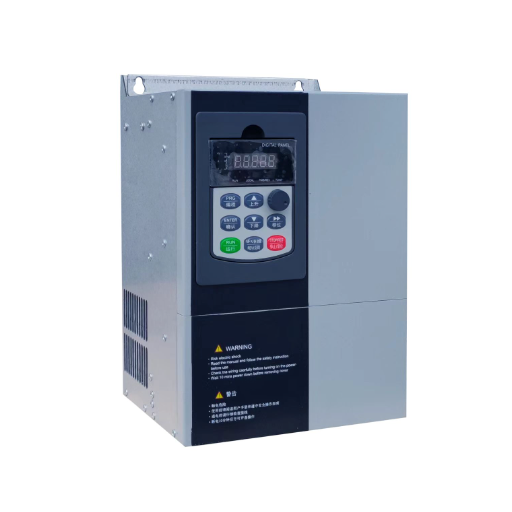
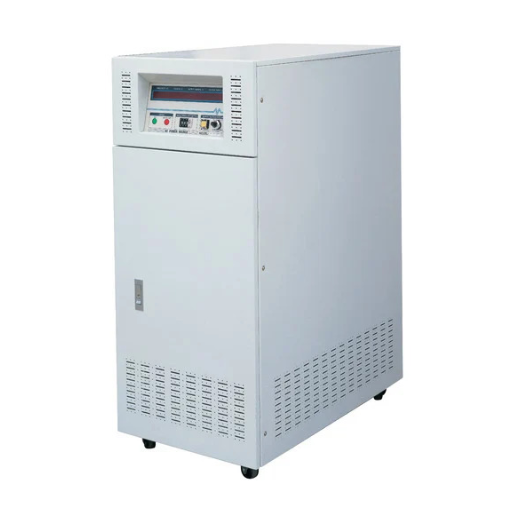
Ready to Get Your VFD Solution?
Whether you need a single drive or a complete system, we have the VFD products and engineering support to ensure your project's success.


VFD programming is the process of entering, editing, saving, and transferring the parameter values that tell a variable frequency drive how to run a motor. You can do it through the keypad on the drive, through manufacturer software on a laptop, or remotely through a PLC or fieldbus network. The method you choose depends on how many drives you have, how often the settings change, and how comfortable your team is with each interface.
A maintenance technician in Ohio once spent three hours scrolling through a 300-parameter menu because the keypad manual was missing. He had already set the motor current, but he couldn’t find the command to save it. Every time he cycled power, the drive forgot his changes. After a frustrated call to the supplier, he learned that the drive required a two-key press to store parameters, not the single Enter key he was used to on another brand. That one detail turned a 20-minute job into an afternoon.
This guide gives you a repeatable VFD programming workflow that works across brands. You’ll learn the VFD programming basics, the three ways to program a VFD, a nine-step process from lockout to test run, and the mistakes that trip up even experienced technicians. For the engineering decisions behind each setting, see our VFD configuration guide.
Key Takeaways
- VFD programming is the practical act of entering parameters; it is different from VFD configuration, which decides what those parameters should be.
- You can program a VFD through the keypad, PC software, or a PLC/fieldbus; choose the method based on quantity, complexity, and access.
- A repeatable nine-step workflow covers lockout, factory reset, motor data entry, ramps, command source, control mode, auto-tuning, save/backup, and test run.
- The most common VFD programming mistakes are forgetting to save, editing while running, mixing up command source and speed reference, and skipping auto-tuning in vector mode.
- Always back up the parameter set after programming. A current backup turns a failed-drive replacement from a half-day re-commissioning into a quick swap.

VFD programming is the interface work that turns engineering intent into stored drive behavior. Every variable frequency drive contains a microprocessor that reads parameter values and converts them into output frequency, voltage, and control logic. Those values don’t appear by themselves. Someone has to enter them.
Programming covers four actions: reading a parameter, changing its value, saving the change, and copying the complete set somewhere safe. It also includes the higher-level tasks of uploading a full parameter set from one drive to another and downloading a saved file during commissioning or replacement.
Programming isn’t the same as configuration. Configuration answers questions like “What is the motor rated current?” and “Should this pump use PID control?” Programming answers “How do I enter that current value into parameter P03.02?” and “Which menu holds the PID enable bit?” Our VFD configuration guide handles the first set of questions. This VFD programming tutorial handles the second.
Most drives support three programming interfaces. Each has its place, and many projects use more than one.
The keypad is the default interface. It is always available, requires no cables or software, and is the fastest way to make a single change in the field. VFD keypad programming starts with a small display and a few buttons: arrow keys to scroll, an Enter key to select, an Escape or Exit key to back out, and sometimes a jog or reset button.
Brand naming differs, but the navigation pattern is usually the same. Parameters are grouped by function: motor data, ramps, limits, protection, I/O, communication, and advanced control. You scroll to the group, select the parameter, change the value, and press Enter. Some drives store the value automatically; others require a separate Save or Store command.
Keypad programming is best for one-off changes, commissioning a single drive, or field adjustments when no laptop is available. The downside is speed. Entering 20-30 parameters through a four-line display takes longer than entering them in software, and typing mistakes are common.
Keypad programming quick reference
Manufacturer software turns a laptop into a full programming station. You connect a VFD programming cable between the drive and the computer, open the software, and see every parameter in a table or wizard. Some packages also show live monitoring data: output current, DC bus voltage, heat-sink temperature, and fault history.
The main advantage is efficiency. VFD programming software lets you enter a complete parameter set in minutes, copy it to a second drive in seconds, and save the file as a backup. For OEMs building multiple identical machines, this is the only practical way to ensure consistency.
The disadvantage is preparation. You need the right cable, the right driver, and the right software version. In a plant with mixed brands, that can mean carrying several cables and installers. Still, for initial commissioning or batch setup, a laptop is usually worth the trouble.
PC software programming quick reference
An OEM engineer named Li used laptop software to clone settings across 18 conveyor drives. What would have been two days of keypad work became a single morning. More importantly, every drive left the factory with identical ramp profiles and protection settings, which reduced warranty callbacks.
Fieldbus programming does not replace keypad or laptop setup for the initial drive configuration, but it changes how the drive behaves in normal operation. Once the drive is commissioned, a PLC or SCADA system can write speed references, start commands, and mode changes over a network such as Modbus RTU, Modbus TCP, EtherNet/IP, or PROFIBUS/PROFINET.
This approach is best when the speed setpoint changes frequently, multiple drives must coordinate, or the operator interface is centralized in a control room. It also enables data logging and remote diagnostics.
Fieldbus programming requires two layers of setup. First, you program the drive to accept commands from the network: choose the fieldbus as the command source and speed reference, set the node address, and match the baud rate. Second, you program the PLC or SCADA to send the correct register values. Both sides must agree on scaling; a register value of 1000 might mean 10 Hz, 100 Hz, or 10% of maximum frequency depending on the convention. If you want detailed wiring diagrams and register-mapping guidance for each protocol, our dedicated guide to VFD communication configuration walks through the drive-side and PLC-side settings that keep both ends in sync.
Fieldbus programming quick reference

A consistent workflow prevents the small errors that cause big downtime. Use these nine steps every time you program a VFD.
Before you open any programming interface, apply lockout/tagout to the supply disconnect. Wait for the DC bus to discharge. Measure the DC bus terminals with a meter rated for the voltage and confirm the reading is below 5 VDC. Even programming work can be dangerous if you need to handle cables or move a drive that is still powered.
Start from a known state. A factory reset clears any leftover settings from a previous application or from someone else’s changes. Most drives reset through a single parameter, often named something like “Initialize,” “Restore Factory Defaults,” or “FP.00.” After the reset, cycle power if the manual requires it.
This step is especially important on replacement drives. A drive pulled from stock may contain settings from the last project. Those settings will conflict with your motor data if you do not clear them first.
The most critical parameters in VFD programming are the motor nameplate values: rated voltage, rated current, rated frequency, rated speed, and number of poles. These tell the drive how much voltage and current the motor expects. Enter them exactly as stamped on the motor nameplate.If you want a full breakdown of what each value means and how it shapes the drive’s calculations, our dedicated guide to VFD motor nameplate parameters explains where to find each figure and why entering it correctly prevents faults later.
If your motor is rated 230/460 V and you’re running on 230 V, enter 230 V. If the full-load current is 12.5 A at 230 V, enter 12.5 A. Don’t enter the lower current value from the 460 V line unless you’re actually running at 460 V. A mismatch here is a common cause of overcurrent or torque problems later.
For a deeper look at which parameters matter most and how they connect to faults, see our VFD parameter settings guide.
Set the maximum and minimum output frequency. For a standard 60 Hz motor, the maximum is often 60 Hz unless the application specifically needs overspeed. The minimum is usually 0 Hz, but some pumps and fans need a minimum of 5-15 Hz to avoid running at dead-head or stall conditions.Because pumps and fans have their own ramp, minimum-speed, and V/f curve needs, our dedicated guide to VFD configuration for pumps and fans pulls those settings together for centrifugal loads.
Next set acceleration time and deceleration time. These are usually in seconds from zero to maximum frequency. A pump might use 10-30 seconds for acceleration and 10-30 seconds for deceleration. A fan with high inertia may need 60 seconds or more to avoid tripping on overvoltage during deceleration.If you want practical formulas for matching ramp times to load inertia, our detailed guide to VFD ramp settings shows how to calculate and fine-tune these values for each load type.
The drive needs to know two things: where the start/stop command comes from, and where the speed setpoint comes from. These can be the same source or different sources.
Common command sources include:
Common speed references include:
A common mistake is setting the command source to terminal and the speed reference to keypad. In that case the drive starts when a PLC closes a contact, but it still runs at whatever speed was last entered on the keypad. The result is a motor that runs at the wrong speed or refuses to change speed remotely.
Most drives offer at least two control modes: V/Hz (also called V/F or scalar) and vector control. Vector control may be sensorless or closed-loop with an encoder. For a detailed comparison, see our VFD control modes guide.For a head-to-head look at each option with sizing tips, our full guide to VFD control modes breaks down when V/Hz, sensorless vector, and closed-loop vector make the most sense.
V/Hz mode is the default and works for most pumps, fans, and conveyors. It is forgiving and requires no motor identification run. Vector mode gives better torque response and is better for hoists, cranes, high-performance conveyors, and applications with sudden load changes. It usually requires auto-tuning.
Auto-tuning, also called motor identification or motor learning, measures the electrical characteristics of the motor and stores them inside the drive. It is required for most vector control modes and recommended for precise V/Hz operation.
There are two types. Static tuning measures the motor with the shaft locked or at standstill. Dynamic tuning spins the motor at low speed and is more accurate, but it requires the load to be uncoupled or safe to move. Follow the drive manual carefully; some drives require the motor to be uncoupled for dynamic tuning, while others can tune with the load connected.
Skipping auto-tuning in vector mode is one of the most common causes of poor performance. The drive will run, but it may hunt, stall under load, or trip on overcurrent.
After all parameters are entered, save them to non-volatile memory. This is the step the Ohio technician missed. On many drives, changing a parameter only stores it in temporary memory. A power cycle will erase it unless you explicitly save.
The save command is usually a specific parameter or a two-key combination. Check the manual. Once saved, immediately back up the full parameter set to the programming software, a USB stick, or a CMMS.For step-by-step methods covering keypad, PC-tool, and memory-card backups along with clear naming conventions, our guide to VFD parameter backup shows how to protect and quickly restore a working configuration. Our VFD preventive maintenance guide explains why parameter backup should be part of every maintenance routine.
Remove lockout, apply power, and run the drive. First test at low speed with no load. Check direction of rotation. Check that current draw is reasonable. Then ramp to normal speed and verify that acceleration and deceleration feel smooth.
If the drive trips, use the VFD error code lookup to interpret the fault. Common VFD parameter programming faults include overcurrent from wrong motor data, overvoltage from too short a decel time, and undervoltage from incorrect voltage class. Our VFD not running guide covers the case where the drive powers up but the motor does not start.

Even small errors in VFD programming can cause confusing symptoms. Here are the ones we see most often.
This is the most common mistake. The display shows the new value, but the drive has not stored it. Always confirm the save method for the brand you are using.
Some parameters cannot be changed while the drive is enabled. The keypad may let you enter a new value, then reject it when you press Enter. Stop the drive first if the manual recommends it.
A motor rated current of 12.5 A becomes 125 A if you enter it in tenths of an amp. Some drives use 0.1 A resolution. Read the parameter description before you type.
Vector control depends on an accurate motor model. Without auto-tuning, the drive is guessing. Performance will suffer.
These are two separate parameters. A drive can start from a terminal but still read speed from the keypad. Verify both settings.
Before you change anything on a working drive, back up the existing parameters. If the change causes a problem, you can restore the previous known-good set in minutes.It also pays to review your fault thresholds while you are in the parameter menu, and our guide to VFD protection settings explains how to set overload, overcurrent, and voltage limits so the drive trips on real problems without nuisance faults.
| Method | Best for | Speed | Equipment needed | Backup ability |
| Keypad | Single drive, field adjustments | Slow | None | Limited or manual |
| PC software | Multiple drives, commissioning | Fast | Laptop, cable, software | Full upload/download |
| Fieldbus/PLC | Ongoing control, automation | Instant after setup | PLC, network, programming | Through PLC/SCADA |
Use the keypad for quick changes, software for commissioning, and fieldbus for production control. In most plants, all three methods are used at different stages of the drive life cycle.
VFD programming is the process of entering, editing, saving, and transferring the parameter values that control how a variable frequency drive runs a motor. It includes keypad programming, PC software programming, and fieldbus programming from a PLC.
Start with a factory reset. Then enter the motor nameplate data, set frequency limits and ramps, choose the command source and speed reference, select the control mode, run auto-tuning if needed, save the parameters, and perform a test run.
Yes. Most manufacturers provide free or licensed VFD programming software that connects to the drive through a USB or serial cable. Programming a VFD with a laptop is faster than keypad programming and makes it easy to back up and clone parameter sets.
The parameters were probably changed in temporary memory but never saved to non-volatile memory. Check the manual for the save command, which is often a two-key press or a specific parameter.
No. Auto-tuning is required for most vector control modes and recommended for precise operation in V/Hz mode. If you are using basic V/Hz control for a pump or fan, many drives will run acceptably with default motor data and no auto-tuning.
Command source tells the drive where to get the start/stop command, such as the keypad, a terminal input, or a PLC. Speed reference tells the drive where to get the speed setpoint, such as a keypad potentiometer, an analog input, or a Modbus register. They can be different sources.
Use the manufacturer’s software to upload the full parameter set to a file. Save the file in the CMMS, on a network drive, and on a USB stick in the cabinet. Some drives also allow backup to the keypad memory or a plug-in memory card.
A PLC can change speed references, start/stop commands, and operating modes over a fieldbus network. It usually does not replace the initial keypad or laptop commissioning, but it is the best way to control the drive during normal production.
VFD programming isn’t difficult once you separate the interface work from the engineering decisions. The drive doesn’t care whether you enter a value through a keypad, a laptop, or a PLC register. It only cares that the value is correct and saved.
If you are selecting or commissioning drives, the Shandong Electric VFD product range includes low-voltage and high-voltage solutions with keypad, software, and fieldbus support backed by our engineering team.